
Mitigating IE Zero-Day (CVE-2020-0674/ADV200001) with PowerShell and Intune
Microsoft published a security advisory (ADV200001) containing mitigations against an actively exploited zero-day remote code execution (RCE) vulnerability in Internet Explorer. At time of writing, there is no patch for the vulnerability. Microsoft is expecting to release a patch as part of the usual Patch Tuesday (Wednesday for some of us) cycle.
Microsoft has provided some mitigation steps that can be applied; however, they only recommend taking these steps if there is an indication you are under elevated risk. One of the problems with the mitigation steps is that you MUST revert the changes before you can install any future updated.
The mitigations also come with some side-effects; their impact might be too much for some organisations. Side-effects include:
- Printing to HP printers and other USB printers mail fail.
- Windows Media Player is reported to break on playing MP4 files.
- Sfc.exe will break.
- Printing to "Microsoft Print to PDF" is reported to break.
- Proxy automatic configuration scripts (PAC scripts) may not work. For me, I couldn’t imagine managing some enterprise environments without PAC scripts. That alone would be a good reason to not deploy these fixes.
If after all of this, you want to still apply these mitigations. I put together some quick guidance for their implementation with Intune.
Enabling the mitigations
- Get a copy of the Enable-ADV200001.ps1 script from my GitHub repository.
- Sign-in to the Microsoft Endpoint Manager Admin Center.
- Select Devices > PowerShell scripts > Add.
- In Basics, enter the Name: Enable IE Mitigations for ADV200001, and select Next:
- In Script settings, browse to where you downloaded the Enable-ADV200001.ps1 script, leave everything else at their default settings, and select Next:
- Select Scope tags. Scope tags are optional, if you don’t use this feature, select Next.
- Select Assignments > Select groups to include. Select with groups this script should be applied to, select Next.
- In Review + add, a summary is shown of the settings you configured. Select Add to save the script. When you select Add, the policy is deployed to the groups you chose.
Disabling the mitigations
- Get a copy of the Disable-ADV200001.ps1 script from my GitHub repository.
- Sign-in to the Microsoft Endpoint Manager Admin Center.
- Select Devices > PowerShell scripts > Add.
- In Basics, enter the Name: Disable IE Mitigations for ADV200001, and select Next:
- In Script settings, browse to where you downloaded the Disable-ADV200001.ps1 script, leave everything else at their default settings, and select Next:
- Select Scope tags. Scope tags are optional, if you don’t use this feature, select Next.
- Select Assignments > Select groups to include. Select with groups this script should be applied to, select Next.
- In Review + add, a summary is shown of the settings you configured. Select Add to save the script. When you select Add, the policy is deployed to the groups you chose.
More guidance can be found here Use PowerShell scripts on Windows 10 devices in Intune
Just remember that before your next patch cycle, you need to disable the mitigations, otherwise the updates will fail.
Ensuring your Windows 10 Clients are protected from CryptoAPI bug
Two weeks ago, Microsoft patched a vulnerability in its cryptographic library (CryptoAPI) that was reported by the NSA. At the time, there were no reports that this vulnerability had being exploited in the wild, however both Microsoft and the NSA where keen for organisations to install patches as quickly as possible. In its second-ever emergency directive, DHS' CISA recommended organisations perform the required endpoint patching by the 29th of January. I wrote about the first CISA emergency directive in my Advice on Mitigating DNS Infrastructure Tampering.
Proof-of-concept exploit code was quickly made available, but there are still no reported attacks. With the potential of attackers exploiting the vulnerability to sign malicious executables, that is, making malicious executables appear as if they are from a trusted, legitimate source; there are plenty of reasons to make installing this patch a priority.
As administrators, we already have the tools at our disposal to ensure that our Windows 10 clients are protected. Intune and Azure AD Conditional Access can once again be used to protect clients, as we did with Spectre and Meltdown.
How does it work? Read my post Using Intune and AAD to protect against Spectre and Meltdown, to understand the basics of how we can implement checks to validate the version of Windows 10 installed for Intune enrolled devices.
You will need to specify either of these two values for the Minimum OS version in your Windows 10 complaince policy:
- For Windows 10 version 1903 (May 2019 Update): 10.0.18362.592
- For Windows 10 version 1909 (November 2019 Update): 10.0.18363.592
I recommend the later, 10.0.18363.592, as it will allow you to ensure that all your clients are running the very latest Windows 10 features.
Need help with Windows 10 version numbering? Check out Wikipedia’s Windows 10 Version History) page. It is an exceptionally detailed guide on what versions you need to be aware of.
Using Intune and AAD to protect against Spectre and Meltdown
I’m a big fan of Intune’s device compliance policies and Azure Active Directory’s (AAD) conditional access rules. They're one piece of the puzzle in moving to a [Beyond Corp][5] model, that I believe is the future of enterprise networks.
I’m a big fan of Intune’s device compliance policies and Azure Active Directory’s (AAD) conditional access rules. They're one piece of the puzzle in moving to a Beyond Corp model, that I believe is the future of enterprise networks.
Compliance policies allow us to define what it takes for a device (typically a client) to be considered secure. The rules could include the use of a password, encryption, OS version or even if a device has been jail-broken or rooted. In Intune we can define policies for Windows 8.1 and 10, Windows Phone, macOS, iOS and Android.
One critical thing to highlight is that compliance policies don’t enforce settings and don’t make changes to a device. They're simply a decision-making tool that allows Intune (and AAD) to determine the status of the device. If we want to make changes to a device, we need to use Intune configuration policies. It's up to the admin or the user to make a non-compliant device compliant.
A common misconception with compliance policies are that the verification process occurs in real-time, that is, when a user tries to login the device's compliance status is checked. The check occurs on an hourly basis, though users and admins can trigger off a check manually.
The next piece of the puzzle are conditional access policies. These are policies that allow us to target different sign-in experiences for different applications, devices and user accounts. A user on a compliant device may receive a different sign-in experience to someone using a web browser on some random unknown device.
How compliance policies and conditional access work together
To understand how Compliance Policies and Conditional Access works, let’s look at a user story.
Fred works in the Accounting department at Capital Systems. Fred has a work PC issued by Capital’s IT Team, and a home PC that he bought from a local computer store.
The IT team has defined two Conditional Access policies:
- For Office 365: a user can connect from a compliant device, or needs to pass an MFA check.
- For the finance system: the user can only connect from a compliant device and must pass an MFA check.
How does this work in practice?
When Fred tries to access his email from his work device, perhaps through a browser, AAD will check his device’s compliance status during login. As Fred’s work PC is compliant, it will allow access to his email.
Fred now goes home, on the train he remembers he forgot to reply to an important email. When Fred gets home, he starts his home PC and navigates to the Office 365 portal. This time, AAD doesn’t know the device, so it will treat the device as non-compliant. This time, Fred will be prompted to complete MFA before he can access his email.
Things are different for Fred when he tries to access Capital’s finance system. Fred will be able to access this system from his work PC as its complaint, assuming he completes an MFA request. Fred won't be able to access this finance system from his home PC as his device isn’t compliant.
These rules allow Capital System’s IT team to govern who can access an application, from what devices they can access it from, and if they need to complete MFA.
Ensuring Spectre and Meltdown Patches are installed
We can use compliance policies to check if a device’s OS version contains the Spectre and Meltdown patches. When Intune checks the devices compliance, if isn't running with expected patch level, it will be marked as non-compliant.
What does this mean for the user? In Fred’s case, if his work PC lacks those updates, he may receive extra MFA prompts and loose access to the finance system, until he installs the right patches.
The Intune portal and PowerBI can be used to generate reports on device compliance and identify devices that need attention. You can also configure Intune to email a user when their device becomes non-compliant. This email can be customised, I recommend that you include a link to a remediation guide or to your support system.
Configuring Intune Compliance Policies
Compliance policies can be created and modified in the Azure Portal via the Intune panel. Simply navigate to the Device Compliance and then Policies. You'll need to create a separate policy for each OS that you want to manage compliance.
Within a compliance policy, we specify an OS version using a “major.minor.build” formatted string.
The major versions numbers are:
- Windows 10 - 10.0 Note that the .0 is important*
- Windows 8.1 - 3
- macOS - 10
We can express things like Windows 10 Fall Creators, or macOS High Sierra using the minor version number.
- Windows 10 Fall Creators Update - 10.0.16299
- macOS High Sierra - 10.13
Finally, we can narrow down to a specific release or patch by using the build version number. For instance, the January updates for each platform are:
- Windows 10 Fall Creators Update - 10.0.16299.192
- macOS High Sierra - 10.13.2
You can specify the minimum and maximum OS version by navigating to Properties, Settings and then Device Properties.

Setting the minimum Windows 10 version in a compliance policy.
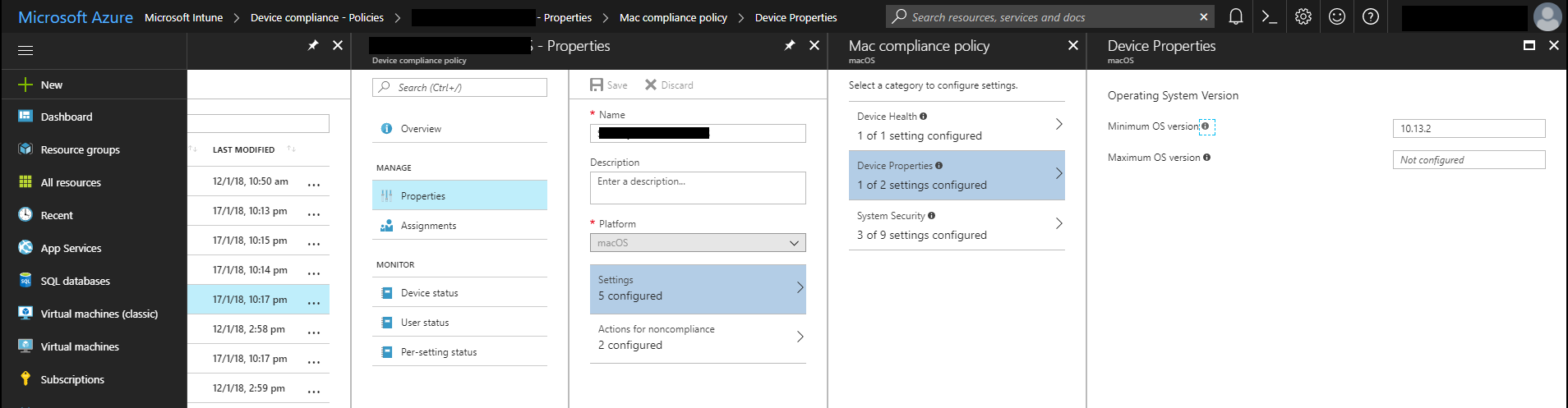
Setting the minimum macOS version in a compliance policy.
Once you have made this change, devices that don't meet the minimum version will be marked as non-compliant during their next compliance evaluation.
Kieran Jacobsen