
Managing Windows Speculation Control Protections with PowerShell DSC
As part of their response to the Speculative Execution vulnerabilities, Spectre and Meltdown, Microsoft released updates for all supported systems. Microsoft made the decision to not enable these protections in Windows Server by default. It's up to you as the administrator to enable the protections.
As part of their response to the Speculative Execution vulnerabilities, Spectre and Meltdown, Microsoft released updates for all supported systems. Microsoft made the decision to not enable these protections in Windows Server by default. It's up to you as the administrator to enable the protections.
Microsoft’s used the reg command to make the registry changes. This tool is great on a single machine, but it doesn’t scale. You need to use a configuration management tool like PowerShell DSC to make the changes at scale.
These changes could be made using the registry DSC resource, but I wanted a more simplified configuration using a custom DSC resource. I looked, and couldn’t find a resource, so I created cSpeculationControlFixes.
Managing the Protections
With the cSpeculationControlFix resource, administrators can enable or disable the protections. You'll need to restart the system for the changes to take effect, cSpeculationControlFix will notify the LCM if a reboot is required.
Configuration EnableSpeculationControl
{
    Import-DscResource -Module cSpeculationControlFixes
    cSpeculationControlFix enableSpeculationControlFix
    {
        Status = 'Enabled'
    }
}
Spectre Variant 2
Microsoft now provides a mechanism for enabling and disabling the Spectre Variant 2 protections separately from the other protections. With the cSpectreVariant2 resource, an administrator can enable or disable just the Spectre Variant 2 protections. For this resource to work, you need to have the updates described in this knowledge base article. Once again, cSpectreVariant2 will notify the LCM if a reboot is required.
Configuration EnableSpectreVariant2
{
    Import-DscResource -Module cSpeculationControlFixes
    cSpectreVariant2 enableSpectreVariant2Fix
    {
        Status = 'Enabled'
    }
}

Configuration DisableSpectreVariant2
{
    Import-DscResource -Module cSpeculationControlFixes
    cSpectreVariant2 enableSpectreVariant2Fix
    {
        Status = 'Disabled'
    }
}
Anti-Virus Compatibility Flag
A massive issue with these updates is that Windows Update won't offer to install these updates unless your anti-virus product as created the appropriate compatibility flag. This issue is, what about those computers, mainly servers, that don’t have an anti-virus product installed? The truth is, these update, nor any further security updates will be available.
To combat this, the cSpeculationControlAVCompatibility resource allows and administrator to enable this flag on systems that don’t have an anti-virus installed.
Configuration EnablecSpeculationControlAVCompatibility
{
    Import-DscResource -Module cSpeculationControlFixes

    cSpeculationControlAVCompatibility enablecSpeculationControlAVCompatibility
    {
        Status = 'Enabled'
    }
}
Getting the Module
The easiest way to get cSpeculationControlFixes is using the PowerShell Gallery, or from GitHub.
Installing the module from the gallery is as easy as:
PS> Install-Module -Name cSpeculationControlFixesIf you discover any issues, please report then via GitHub Issues.
Kieran Jacobsen
Using Intune and AAD to protect against Spectre and Meltdown
I’m a big fan of Intune’s device compliance policies and Azure Active Directory’s (AAD) conditional access rules. They're one piece of the puzzle in moving to a [Beyond Corp][5] model, that I believe is the future of enterprise networks.
I’m a big fan of Intune’s device compliance policies and Azure Active Directory’s (AAD) conditional access rules. They're one piece of the puzzle in moving to a Beyond Corp model, that I believe is the future of enterprise networks.
Compliance policies allow us to define what it takes for a device (typically a client) to be considered secure. The rules could include the use of a password, encryption, OS version or even if a device has been jail-broken or rooted. In Intune we can define policies for Windows 8.1 and 10, Windows Phone, macOS, iOS and Android.
One critical thing to highlight is that compliance policies don’t enforce settings and don’t make changes to a device. They're simply a decision-making tool that allows Intune (and AAD) to determine the status of the device. If we want to make changes to a device, we need to use Intune configuration policies. It's up to the admin or the user to make a non-compliant device compliant.
A common misconception with compliance policies are that the verification process occurs in real-time, that is, when a user tries to login the device's compliance status is checked. The check occurs on an hourly basis, though users and admins can trigger off a check manually.
The next piece of the puzzle are conditional access policies. These are policies that allow us to target different sign-in experiences for different applications, devices and user accounts. A user on a compliant device may receive a different sign-in experience to someone using a web browser on some random unknown device.
How compliance policies and conditional access work together
To understand how Compliance Policies and Conditional Access works, let’s look at a user story.
Fred works in the Accounting department at Capital Systems. Fred has a work PC issued by Capital’s IT Team, and a home PC that he bought from a local computer store.
The IT team has defined two Conditional Access policies:
- For Office 365: a user can connect from a compliant device, or needs to pass an MFA check.
- For the finance system: the user can only connect from a compliant device and must pass an MFA check.
How does this work in practice?
When Fred tries to access his email from his work device, perhaps through a browser, AAD will check his device’s compliance status during login. As Fred’s work PC is compliant, it will allow access to his email.
Fred now goes home, on the train he remembers he forgot to reply to an important email. When Fred gets home, he starts his home PC and navigates to the Office 365 portal. This time, AAD doesn’t know the device, so it will treat the device as non-compliant. This time, Fred will be prompted to complete MFA before he can access his email.
Things are different for Fred when he tries to access Capital’s finance system. Fred will be able to access this system from his work PC as its complaint, assuming he completes an MFA request. Fred won't be able to access this finance system from his home PC as his device isn’t compliant.
These rules allow Capital System’s IT team to govern who can access an application, from what devices they can access it from, and if they need to complete MFA.
Ensuring Spectre and Meltdown Patches are installed
We can use compliance policies to check if a device’s OS version contains the Spectre and Meltdown patches. When Intune checks the devices compliance, if isn't running with expected patch level, it will be marked as non-compliant.
What does this mean for the user? In Fred’s case, if his work PC lacks those updates, he may receive extra MFA prompts and loose access to the finance system, until he installs the right patches.
The Intune portal and PowerBI can be used to generate reports on device compliance and identify devices that need attention. You can also configure Intune to email a user when their device becomes non-compliant. This email can be customised, I recommend that you include a link to a remediation guide or to your support system.
Configuring Intune Compliance Policies
Compliance policies can be created and modified in the Azure Portal via the Intune panel. Simply navigate to the Device Compliance and then Policies. You'll need to create a separate policy for each OS that you want to manage compliance.
Within a compliance policy, we specify an OS version using a “major.minor.build” formatted string.
The major versions numbers are:
- Windows 10 - 10.0 Note that the .0 is important*
- Windows 8.1 - 3
- macOS - 10
We can express things like Windows 10 Fall Creators, or macOS High Sierra using the minor version number.
- Windows 10 Fall Creators Update - 10.0.16299
- macOS High Sierra - 10.13
Finally, we can narrow down to a specific release or patch by using the build version number. For instance, the January updates for each platform are:
- Windows 10 Fall Creators Update - 10.0.16299.192
- macOS High Sierra - 10.13.2
You can specify the minimum and maximum OS version by navigating to Properties, Settings and then Device Properties.

Setting the minimum Windows 10 version in a compliance policy.
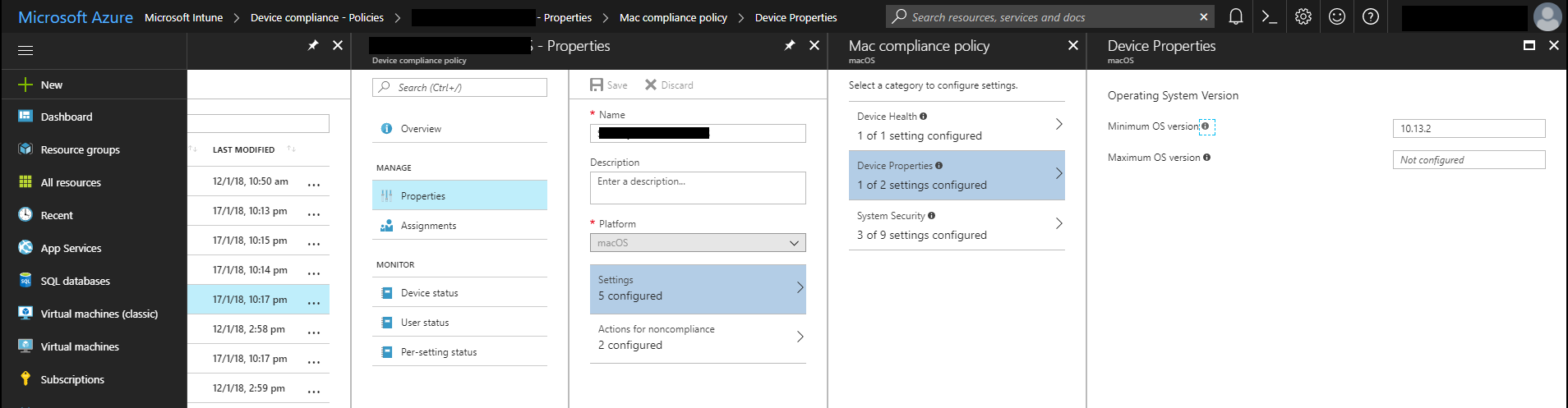
Setting the minimum macOS version in a compliance policy.
Once you have made this change, devices that don't meet the minimum version will be marked as non-compliant during their next compliance evaluation.
Kieran Jacobsen
Updated: A Home User Guide to Spectre and Meltdown
Unless you have been living under a rock or in a case, you have probably heard of the CPU vulnerabilities: Meltdown and Spectre. There’s been quite a lot of media hype, you could be forgiven thinking that these are world-ending bugs. My opinion, and that of others is that this isn’t something to panic over.

You might be feeling like Homer Simpson when reading about Meltdown and Spectre.
Updates
2018-01-29
Intel has released updates for variant 2 of the Spectre attack. Several OEMs have started pushing this update out to their customers. There have been widespread reports of device instability. Intel have since recommended that users do not deploy these updates. My recommendation is to hold off on any firmware/BIOS updates for a few more weeks.
Microsoft has also released updates resolving issues with those originally released. The first round of updates resolved issues with AMD systems, the second provides the option to manually disable and enable the Spectre Variant 2 fixes. These updates are not published via Windows Update, you will need to manually install it. If you are experiencing stability issues since these updates have been installed, you may wish to consider installing these updates.
Unless you have been living under a rock or in a case, you have probably heard of the CPU vulnerabilities: Meltdown and Spectre. There’s been quite a lot of media hype, you could be forgiven thinking that these are world-ending bugs. My opinion, and that of others is that this isn’t something to panic over.
Neither Meltdown or Spectre have been used in attacks. While there's proof-of-concept (POC) code that exploits these vulnerabilities, there's no evidence that they've been used in any attacks.
Generally, most guidance has been right, yet I've seen some incorrect or deceptive statements on social media. I wanted to address these in a very quick post, and give some more concrete steps.
I've broken down the response into four main categories, Windows 10, Apple iOS and macOS, Android and finally Web Browsers.
Windows 10
Let’s start with the Windows users. If you're running Windows, you need to ensure that both your anti-virus, computer’s firmware and Windows are all up-to-date to be fully protected.
I'm assuming you're running Windows 10. If you're running any older version of Windows, please update, Windows 10 is the most secure Windows to date. Windows 10, especially the latest Fall Creators update contains a significant amount of new security protection features, all available to you out-of-the-box and configured for you.
Regrettably, due to the Windows ecosystem, ensuring you're safe isn’t as simple for Windows users as Microsoft or those of us in the industry would like.
1 - Update Anti-Virus (AV) Software
During testing, Microsoft found that the fixes might result in a Blue Screen of Death (BSOD) when installed on computers running some anti-virus software. Basically, some AV products hook into Windows in a weird way that conflicts with the patch.
To ensure that you don’t end up with a broken PC, Windows won't install the patch if it thinks there might be an issue. How does Microsoft know? Your AV software needs to create a specific registry key to let Windows know it's ok to install the patch.
For most AV products, they're creating they required key, but there are quite a few that don't. How o you know if your product supports the fixes? Thankfully, Kevin Beaumont has been maintaining an extremely helpful list.
What if you don’t run an AV product? What if you have disabled Windows Defender completely? I haven’t tested to confirm, but you may need to create the registry manually.
Another pitfall is that you need to ensure your license or subscription for your AV product is valid. Often, I see people using the AV that came bumbled with their computer; that’s ok, if you maintain the license. The bundled AV products often come as time limited trials, or only last for a year. Sometimes when they expire, it isn’t obvious, and you're left with no protection at all!
Actions:
- Ensure that you have a license for your AV product. If your license has expired, you can switch back to Windows Defender.
- Ensure that your AV product is up-to-date.
2 - Update Computer Firmware/BIOS
A common misconception is that these issues can be fixed at an Operating System layer. Operating System updates only address Meltdown, to resolve Spectre, we need to install firmware updates on your computer’s hardware.
Your computers Original Equipment Manufacturer (OEM), will need to make updates available to you to ensure that your computer is running the correct processor fixes.
Microsoft and Dell have released updates for their computers, Lenovo appears to be patched but I can’t find anything official. There's no word from HP, and it doesn’t appear that they've released any updates for these vulnerabilities. It's worth noting that Microsoft hasn’t released firmware updates for the original Surface Pro or Surface Pro 2. The smaller vendors weren't included in the pre-announcement work, so they're playing catch-up; for instance, Razer is currently working on update for their Razer Blade line.
Actions:
- Depending upon your computer, the firmware updates may happen automatically, or you may need to manually do them. Check with your OEM.
- Check with your OEM to determine if firmware updates are available.
3 - Update Windows 10
The different versions of Windows 10: Release, Anniversary, Creators and Fall Creators; make it a harder to confirm you have the correct updates installed.
The first thing we need to do is determine what version of Windows 10 your computer is running:
- Open Windows 10 Settings app.
- Select “System”, then “About”.
- Under the heading “Windows Specifications” look at the “Version Field”.
- Make a note of the number. It will typically be 1507, 1511, 1607, 1703 or 1709.

You can see I am running Windows 10 Pro 1709 (Fall Creators Update).
Next, we need to check if the related update is installed.
- Open the Windows 10 Settings app. If you kept it open from the last stage, select “Home”.
- Select “Update & Security”.
- Select “View installed update history”.
- Under “Quality Updates”, look for an update with the appropriate knowledge base (KB number) as listed in the table:

Windows 10 Versions and their Spectre/Meltdown Patches

You can see here that KB 4056892 has been installed on my computer.
Please Note: Right now Microsoft has suspended pushing out the Spectre patch to some systems with AMD processes due to another BSOD issue. I will update this post when more informaiton is available.
Actions:
- Ensure that the January updates for Windows 10 have been installed according to the steps above.
Apple iOS and macOS
All the Apple line-up, except for the Apple Watch, are impacted by Meltdown and Spectre. This includes Apple iPhones and iPads running their A-series processors. Fixes were included in the macOS 10.13.2, iOS 11.2 and tvOS 11.2 updates released in December. These updates include hardware firmware updates and operating system fixes.
Actions:
- Ensure macOS 10.13.2, iOS 11.2 and tvOS 11.2 or greater are installed.
Android
Android has always been slow on the uptake for security updates due to the diversity of devices out there. Updates need to be created by the Android team, and then distributed out via your device’s maker or in some cases, your mobile carrier. The result is often, updates, be they stability, performance or security updates, just don’t reach you the end-user.
Updates have already been made available by the Android team, with Google pushing them out to supported Nexus and Pixel phones. The problem is that there's been little to no word from the other Android phone and tablet makers.
Actions:
- Supported Pixel and Nexus Devices: Ensure you're running the latest update.
- Confirm with your devices maker if updates are available.
Web Browsers
The most likely way that these vulnerabilities will be exploited is via JavaScript, a type of code that webpages can run in your browser. Due to this risk, this Microsoft, Google, Apple and Mozilla have all released update to their browsers with new protection mechanisms.
Actions:
- For Microsoft Edge and Internet Explorer, the protections are included in the patch that we looked at earlier.
- Google will be releasing protections as part of Chrome 64, which is scheduled to be released on January 23rd.
- Apple released updates for Safari on the January 9th. For Windows and macOS, you can install these directly. For iOS devices you'll need to ensure that you install iOS 11.2.2.
- Firefox 57 will include the protections, it's scheduled to be released on January 23rd as well.
- Other browsers like Opera and Brave haven't provided schedules for the updates. As these are based on Chromium, expect updates around January 23rd.
Conclusion
There is no reason to panic over the Meltdown and Spectre CPU vulnerabilities. Ensuring that your computer is updated, from your computers firmware, to operating system, to anti-virus and browser will keep you protected.
Kieran Jacobsen