
Updated: A Home User Guide to Spectre and Meltdown
Unless you have been living under a rock or in a case, you have probably heard of the CPU vulnerabilities: Meltdown and Spectre. There’s been quite a lot of media hype, you could be forgiven thinking that these are world-ending bugs. My opinion, and that of others is that this isn’t something to panic over.

You might be feeling like Homer Simpson when reading about Meltdown and Spectre.
Updates
2018-01-29
Intel has released updates for variant 2 of the Spectre attack. Several OEMs have started pushing this update out to their customers. There have been widespread reports of device instability. Intel have since recommended that users do not deploy these updates. My recommendation is to hold off on any firmware/BIOS updates for a few more weeks.
Microsoft has also released updates resolving issues with those originally released. The first round of updates resolved issues with AMD systems, the second provides the option to manually disable and enable the Spectre Variant 2 fixes. These updates are not published via Windows Update, you will need to manually install it. If you are experiencing stability issues since these updates have been installed, you may wish to consider installing these updates.
Unless you have been living under a rock or in a case, you have probably heard of the CPU vulnerabilities: Meltdown and Spectre. There’s been quite a lot of media hype, you could be forgiven thinking that these are world-ending bugs. My opinion, and that of others is that this isn’t something to panic over.
Neither Meltdown or Spectre have been used in attacks. While there's proof-of-concept (POC) code that exploits these vulnerabilities, there's no evidence that they've been used in any attacks.
Generally, most guidance has been right, yet I've seen some incorrect or deceptive statements on social media. I wanted to address these in a very quick post, and give some more concrete steps.
I've broken down the response into four main categories, Windows 10, Apple iOS and macOS, Android and finally Web Browsers.
Windows 10
Let’s start with the Windows users. If you're running Windows, you need to ensure that both your anti-virus, computer’s firmware and Windows are all up-to-date to be fully protected.
I'm assuming you're running Windows 10. If you're running any older version of Windows, please update, Windows 10 is the most secure Windows to date. Windows 10, especially the latest Fall Creators update contains a significant amount of new security protection features, all available to you out-of-the-box and configured for you.
Regrettably, due to the Windows ecosystem, ensuring you're safe isn’t as simple for Windows users as Microsoft or those of us in the industry would like.
1 - Update Anti-Virus (AV) Software
During testing, Microsoft found that the fixes might result in a Blue Screen of Death (BSOD) when installed on computers running some anti-virus software. Basically, some AV products hook into Windows in a weird way that conflicts with the patch.
To ensure that you don’t end up with a broken PC, Windows won't install the patch if it thinks there might be an issue. How does Microsoft know? Your AV software needs to create a specific registry key to let Windows know it's ok to install the patch.
For most AV products, they're creating they required key, but there are quite a few that don't. How o you know if your product supports the fixes? Thankfully, Kevin Beaumont has been maintaining an extremely helpful list.
What if you don’t run an AV product? What if you have disabled Windows Defender completely? I haven’t tested to confirm, but you may need to create the registry manually.
Another pitfall is that you need to ensure your license or subscription for your AV product is valid. Often, I see people using the AV that came bumbled with their computer; that’s ok, if you maintain the license. The bundled AV products often come as time limited trials, or only last for a year. Sometimes when they expire, it isn’t obvious, and you're left with no protection at all!
Actions:
- Ensure that you have a license for your AV product. If your license has expired, you can switch back to Windows Defender.
- Ensure that your AV product is up-to-date.
2 - Update Computer Firmware/BIOS
A common misconception is that these issues can be fixed at an Operating System layer. Operating System updates only address Meltdown, to resolve Spectre, we need to install firmware updates on your computer’s hardware.
Your computers Original Equipment Manufacturer (OEM), will need to make updates available to you to ensure that your computer is running the correct processor fixes.
Microsoft and Dell have released updates for their computers, Lenovo appears to be patched but I can’t find anything official. There's no word from HP, and it doesn’t appear that they've released any updates for these vulnerabilities. It's worth noting that Microsoft hasn’t released firmware updates for the original Surface Pro or Surface Pro 2. The smaller vendors weren't included in the pre-announcement work, so they're playing catch-up; for instance, Razer is currently working on update for their Razer Blade line.
Actions:
- Depending upon your computer, the firmware updates may happen automatically, or you may need to manually do them. Check with your OEM.
- Check with your OEM to determine if firmware updates are available.
3 - Update Windows 10
The different versions of Windows 10: Release, Anniversary, Creators and Fall Creators; make it a harder to confirm you have the correct updates installed.
The first thing we need to do is determine what version of Windows 10 your computer is running:
- Open Windows 10 Settings app.
- Select “System”, then “About”.
- Under the heading “Windows Specifications” look at the “Version Field”.
- Make a note of the number. It will typically be 1507, 1511, 1607, 1703 or 1709.

You can see I am running Windows 10 Pro 1709 (Fall Creators Update).
Next, we need to check if the related update is installed.
- Open the Windows 10 Settings app. If you kept it open from the last stage, select “Home”.
- Select “Update & Security”.
- Select “View installed update history”.
- Under “Quality Updates”, look for an update with the appropriate knowledge base (KB number) as listed in the table:

Windows 10 Versions and their Spectre/Meltdown Patches

You can see here that KB 4056892 has been installed on my computer.
Please Note: Right now Microsoft has suspended pushing out the Spectre patch to some systems with AMD processes due to another BSOD issue. I will update this post when more informaiton is available.
Actions:
- Ensure that the January updates for Windows 10 have been installed according to the steps above.
Apple iOS and macOS
All the Apple line-up, except for the Apple Watch, are impacted by Meltdown and Spectre. This includes Apple iPhones and iPads running their A-series processors. Fixes were included in the macOS 10.13.2, iOS 11.2 and tvOS 11.2 updates released in December. These updates include hardware firmware updates and operating system fixes.
Actions:
- Ensure macOS 10.13.2, iOS 11.2 and tvOS 11.2 or greater are installed.
Android
Android has always been slow on the uptake for security updates due to the diversity of devices out there. Updates need to be created by the Android team, and then distributed out via your device’s maker or in some cases, your mobile carrier. The result is often, updates, be they stability, performance or security updates, just don’t reach you the end-user.
Updates have already been made available by the Android team, with Google pushing them out to supported Nexus and Pixel phones. The problem is that there's been little to no word from the other Android phone and tablet makers.
Actions:
- Supported Pixel and Nexus Devices: Ensure you're running the latest update.
- Confirm with your devices maker if updates are available.
Web Browsers
The most likely way that these vulnerabilities will be exploited is via JavaScript, a type of code that webpages can run in your browser. Due to this risk, this Microsoft, Google, Apple and Mozilla have all released update to their browsers with new protection mechanisms.
Actions:
- For Microsoft Edge and Internet Explorer, the protections are included in the patch that we looked at earlier.
- Google will be releasing protections as part of Chrome 64, which is scheduled to be released on January 23rd.
- Apple released updates for Safari on the January 9th. For Windows and macOS, you can install these directly. For iOS devices you'll need to ensure that you install iOS 11.2.2.
- Firefox 57 will include the protections, it's scheduled to be released on January 23rd as well.
- Other browsers like Opera and Brave haven't provided schedules for the updates. As these are based on Chromium, expect updates around January 23rd.
Conclusion
There is no reason to panic over the Meltdown and Spectre CPU vulnerabilities. Ensuring that your computer is updated, from your computers firmware, to operating system, to anti-virus and browser will keep you protected.
Kieran Jacobsen
DNS Squatting with Azure App Services
Several days ago, a post titled: Microsoft Resnet - DNS Configuration Web Vulnerabilitygrabbed my interest. It has an innocuous title, and I hadn’t recalled anyone else talking about a Microsoft DNS Vulnerability. The post wasn't that long, the description and the proof-of-concept are only a few paragraphs in length; however what I did discover was an interesting vulnerability, one that, I feel, is going to become more and more prevalent with the use of Platform As A Service (PaaS) technologies like Azure App Services.
TL DR
- SaifAllah benMassaoud from Vulnerability Lab discovered that
resnet.microsoft.comwas resolving toresnetportal-prod.azurewebsites.net, however there was no Azure App Service at this address. - Anyone could have established an App Service with this DNS name, and thus squat on a
microsoft.comsubdomain. - This vulnerability has the potential to affect any organisation that is using App Services (or similar PaaS services) and custom domain names where they do not have appropriate controls in place.
Like many involved in the InfoSec industry, I monitor a bunch of vulnerability disclosure feeds. They can be a valuable source of knowledge: new techniques, new bugs, new breaches or just interesting tools and technology.
Several days ago, a post titled: Microsoft Resnet - DNS Configuration Web Vulnerability grabbed my interest. It has an innocuous title, and I hadn’t recalled anyone else talking about a Microsoft DNS Vulnerability. The post wasn't that long, the description and the proof-of-concept are only a few paragraphs in length; however what I did discover was an interesting vulnerability, one that, I feel, is going to become more and more prevalent with the use of Platform As A Service (PaaS) technologies like Azure App Services.
Simply put, in this situation, someone had created a CNAME entry within Microsoft’s DNS to point resnet.microsoft.com to resnetportal-prod.azurewebsites.net, unfortunately, resnetportal-prod.azurewebsites.net didn’t exist. This doesn’t sound that bad? Right?

For those who are not familiar with the azurewebsites.net domain, this is the domain used by Azure App Services to host services. When you create an App Service, you specify a name, like myawesomewebapp.azurewebsites.net, you can then deploy your application to that App Service. You can pick whatever you want as the applications name, as long as no one else has taken it before you.
You can optionally specify a custom domain name for your App Service, like myawesomewebapp.com, and use a CNAME entry to map your custom domain to your azurewebsites.net domain (you can now also use an A record).
You should now be able to see the problem; resnetportal-prod.azurewebsites.net didn’t exist yet the name resnet.microsoft.com was pointed to this App service. What does exist is a great squatting/hijacking opportunity. Anyone could have signed up for an Azure Subscription, created an App Service with the name resnetportal-prod.azurewebsites.net and then hijacked resnet.microsoft.com. Vulnerability Lab maanged to discover a pretty significant issue.
What could one do with a subdomain of microsoft.com? Phishing, credential theft, and ransomware comes to mind pretty quickly. I am sure an APT crew would love to have a domain or subdomain like this. There are probably only a few domain names in the world where the average user and even the average system administrator are extremely trusting, and microsoft.com would have to be one.
It isn't just the big organisations like Microsoft at risk. Any company that makes use of PaaS services like Azure App Services and CNAME entries could potentially become the next victim. Attackers might use your domain name to attack others or perhaps create more effective attacks against your own users.
Let’s consider our friends Contoso Limited; they deployed an application for their users to contosoapp.azurewebsites.net, they also established a custom domain name, home.contoso.com. The app was used for some time, and eventually they decide to decommission it. A developer, maybe a sysadmin deletes the Azure App Service, but in their haste, they forget about the DNS entries. More time goes by, and now Bob from an APT group finds the entry for home.contoso.com pointing to contosoapp.azurewebsites.net, he then goes and sets up his own App Service and hijacks home.contoso.com.
Bob the sends out this email to some Contoso email addresses:
Subject: New Employee Experience
From: Contoso Marketing
Body:
    Hi Team,

    We have launched a new employee portal, it is great and has a bunch of awesome features. The site can be found at http://home.contoso.com.

    From,

    The Contoso Marketing Team
Bob doesn’t even need to hide the links in the email, he doesn’t need any of the usual masking techniques, he can simply display the company’s domain name. If the email structure, text and links are well crafted, how would Fred from Accounting determine if this was a legitimate email?
When a user navigates to the page, perhaps it prompts for credentials, maybe it tries to run a browser exploit? I have no doubt that a campaign against an organisation like this would be extremely successful.
Now the details of how SaifAllah benMassaoud from Vulnerability Lab initially discovered the misconfiguration are not described in the release. I am going to guess that he probably used an automated DNS enumeration tool like DNSRecon and DNSNinja. These make the discovery of DNS records easy, and it would be easy to automate additional checks based upon their results to find vulnerable configurations.
In terms of defending against these issues, there are two methods, both of which need to be implemented by organisations:
- Appropriate change control processes: If an App Service or similar PaaS solution is being decommissioned, processes should be in place to ensure that any associated DNS records are removed;
- Monitor your DNS zones for configuration issues: Have automated scripts that check and send alerts if configuration issues are found.
If you haven’t looked at a DNS management tool like DNSControl, do so now! DNSControl was originally developed by Stack Overflow, and you don’t need to have hundreds of domain names and records to gain value from a tool that allows you to manage DNS as code.
DNSControl uses a Domain Specific Language for defining domains and their records, independently of your provider. You can use macros and variables to simplify your configuration. My favorite features is the ability to configure multiple DNS providers, this is great for migrations and for fault tolerance. The CloudFlare provider still allows for control over their proxy as well, ensuring that all of our configuration remains in source control.
Defending against this vulnerability is fairly simple, practice good change control processes and monitor your DNS zones. DNS enumeration tools like DNSRecon and DNSNinja can also assist in determining your organisations risk, whilst DNS as code tools like DNSControl will give us better control over our DNS change processes.
Kieran Jacobsen
Sending SYSLOG messages to TCP hosts and POSH-SYSLOG V3.0
The Posh-SYSLOG module has been very popular since its first release in 2013. SYLOG provides a common integration point into enterprise monitoring, alerting and security systems and administrators and developers often need to push messages from their scripts and automation activities to a SYSLOG server.
There are two common pieces of feedback, TCP support and improving the performance. I am excited to announce a new version of POSH-SYSLOG, which introduces TCP support and a number of performance improvements.
Kudos must go to Jared Poeppelman (powershellshock) from Microsoft who provided the TCP logic, optimised performance, and added additional Pester cases. I took some time out to make some additional improvements on top of Jared’s work. Due to the significant changes and additional functionality, I am considering this to be version 3.0.
The easiest way to get the module is from the PowerShell Gallery using Install-Module -Name Posh-SYSLOG. You can also clone the GitHub repository.
The first big change by Jared, was to implement the Begin {} Process {} End {} structure for Send-SyslogMessage. With this structure, we can leverage the pipeline to send multiple messages. I have developed scripts where I needed to read application logs and then send them to a SIEM product using SYSLOG; access via the pipeline simplifies these scripts and hopefully improves their performance.
The logic around determining the correct value to be sent as the hostname has been cleaned up and refined. This piece was free of issues, however there were some small tweaks that potentially improved performance. The function is now called as part of the Begin {} block, improving performance for bulk message transmissions. The logic has been moved out to its own internal function, allowing for separate testing and better mocking opportunities in Pester.
Another source of performance improvement is the removal on the need to call Test-NetConnection. This is a dramatic source of improvement when Send-SyslogMessage is executed in a workgroup (that is, a non-domain joined) environment. Previously we called Test-NetConnection to determine the correct network interface that we are using to communicate with the SYSLOG server; now we simply ask the socket for the source IP address and then use Get-NetIPAddress to check if this is a statically assigned address.
All the network functionality and calls have been moved to internal functions. This helped with testing, I can now mock all the network activities which allows for better testing with Pester. The network tests are now much more reliable.
Finally, Jared and I have increased the number of Pester tests. I have tried to aim for over testing everything in the hope that all potential issues are flushed out. With a massive upgrade to the functionality, and such a refactoring have the potential to introducing issues. I am confident that things have been appropriately requested. If issues are found, please raise them via GitHub.
So what is the future now for Posh-SYSLOG? Well for now, I just want to ensure there are no bugs or issues, after that I want to look at implementing the other commonly asked feature; TLS support.
The PowerShell community has been amazing, I have been lucky to have such wonderful community contributions over the past few years. A massive thanks to Jared, Ronald, Xtrahost and Fredruk.
Kieran Jacobsen
Deconstructing Secure HTTP without HTTPS
“Anyone, from the most clueless amateur to the best cryptographer, can create an algorithm that he himself can’t break.”
Short Version
- A crowd funded effort to review Secure HTTP without HTTPS, available from the Unity Asset Store.
- Not safe for use.
- It is not secure, and has a number of cryptographic issues including shared keys, and non-random initialization vectors.
- Key synchronization process is highly susceptible to a man-in-the-middle and SQL injection attack.
- Data is only protected from accidental corruption.
- Code quality issues including reuse of code, SQL injection and poor data validation.
- Big thanks to Troy Hunt, Scott Helme, Ar0xA4, Andy Neillans, Mads Høgstedt Danquah, Bruce Blair, Steve Leigh, Mahdi Hasheminejad, and many others for donations and support!
Background
On a sunny day in early 2017, a colleague of mine, Steve Leigh, posted a link in Readify’s Slack. The link was to a product on the Unity Asset Store, Secure HTTP without HTTPS. The product claims to offer “Secure HTTP” without the need to deploy HTTPS. The description, and documentation claim that it will allow a server to accept a secure request from a client, and return a secure result back to the client. The client side is provided as a Unity Asset and written in C#, while the server side is written in PHP.
After a humorous discussion, I tweeted about Steve’s find: “Secure HTTP without HTTPS! https://www.assetstore.unity3d.com/en/#!/content/27938 …. I am sure @troyhunt will have a laugh. Thanks to @xwipeoutx.”. I found the entire thing amusing, and hoped others in the industry would as well.
Shortly afterwards, I mentioned on twitter that part of me was interested in looking at the code behind the product. I was interested to see what exactly they were doing, and how they managed to do something the rest of the cryptography industry had failed to do. What if they'd actually developed a decent product? Troy encouraged me to pursue looking at the code, and suggested using crowd funding to pay the $50 for a license. So, I created a GoFundMe campaign, put up a quick blurb on what I wanted to do, and posted the link out on Twitter.
Troy retweeted the link to my GoFundMe, and in under an hour, $55 had been raised! I genuinely never expected this sort of support or encouragement. I am very thankful to those who donated for their generosity:
- Troy Hunt
- Scott Helme
- Ar0xA4
- Andy Neillans
- Mads Høgstedt Danquah
- Bruce Blair
- An anonymous donor
I know a few people who wanted to donate missed out, and have since spoken with me, I want to thank you as well for your support.
The Goals of HTTPS and TLS
The aim of Secure HTTP without HTTPS is to be a viable alternative to HTTPS, but what would an alternative look like? What does HTTPS do? In order to review an alternative, we need to have some understanding of HTTPS and TLS.
Wikipedia describes HTTPS as “…communication over Hypertext Transfer Protocol (HTTP) within a connection encrypted by Transport Layer Security, or its predecessor, Secure Sockets Layer. The main motivation for HTTPS is authentication of the visited website and protection of the privacy and integrity of the exchanged data”. The page actually goes on to give an eloquent comparison of HTTP and HTTPS; “HTTP is not encrypted and is vulnerable to man-in-the-middle and eavesdropping attacks, which can let attackers gain access to website accounts and sensitive information, and modify webpages to inject malware or advertisements. HTTPS is designed to withstand such attacks and is considered secure against them…”.
Now that we have some better understanding of HTTPS, then what is TLS? What does it do?
Once again, back on Wikipedia, there is a lengthy, but excellent description of the primary aims of TLS:
“When secured by TLS, connections between a client (e.g., a web browser) and a server (e.g., wikipedia.org) have one or more of the following properties:
- The connection is private (or secure) because symmetric cryptography is used to encrypt the data transmitted. The keys for this symmetric encryption are generated uniquely for each connection and are based on a shared secret negotiated at the start of the session (see TLS handshake protocol). The server and client negotiate the details of which encryption algorithm and cryptographic keys to use before the first byte of data is transmitted (see Algorithm below). The negotiation of a shared secret is both secure (the negotiated secret is unavailable to eavesdroppers and cannot be obtained, even by an attacker who places themselves in the middle of the connection) and reliable (no attacker can modify the communications during the negotiation without being detected).
- The identity of the communicating parties can be authenticated using public-key cryptography. This authentication can be made optional, but is generally required for at least one of the parties (typically the server).
- The connection ensures integrity because each message transmitted includes a message integrity check using a message authentication code to prevent undetected loss or alteration of the data during transmission.”
Reducing all of this down, HTTPS with TLS, provide us with the following:
- We know that information transmitted over the connection is private, and others cannot determine the contents. This is achieved by:
- The use of unique symmetric keys for each connection.
- Negotiating these keys in a secure (private) and reliable manner.
- We can verify who the other party is, if we wish.
- We know that the information transmitted has not been modified, either maliciously or through data loss.
Evaluation Criteria
Now that we have a clearer understanding of HTTPS, we can start to look at how we want to assess Secure HTTP without HTTPS. I felt that the best evaluation criteria would be to assess how effectively it achieves the same outcomes as HTTPS. The code base should also be reviewed to ensure that it is at a satisfactory level, free from defects, and free of backdoors.
My final criteria for the review:
- Data transmitted is kept private, others cannot determine the contents.
- Data cannot be modified without changes being detected by the receiving party.
- Parties can verify who each other are.
- Sensitive material is handled in an appropriate manner.
- The code is free from obvious defects.
- There are no backdoors.
I opted to just do an offline code review, I didn't setup a running environment.
Now that I have the code, and the evaluation criteria, my next step was to put in a professional development request with my employer, Readify. One of the great reasons that I enjoy working at Readify is that we get some amazing opportunities to learn and develop our skills.
Once the time was approved, I got to work.
How does Secure HTTP without HTTPS work?
Secure HTTP without HTTPS, or SMAES as it refers to itself, has two components, a client component, which is a Unity Asset written in C#, and a server component written in PHP.
Implementing the client components of SMAES is easy and only a minimal amount of changes is required to your code. You start by importing the required classes, add the initialization code, specify a shared key, and then ask it to encrypt (or decrypt) information as required.
The server implementation expects that you are using PHP. Once again integration is simple, include the files as required, add some initialization code, specify the same shared key as the client and once again encrypt and decrypt information as required. Optionally, you may want to setup and configure a SQL table on either MySQL or PostgreSQL for storing client keys.
So, what does an “encrypted” conversation look like? On the client side, we perform the following steps:
- Assemble the HTTP request, with parameters. For example: [http://myserver.com/smaes/mypage.php?password=MyPasswordIsSecure&username=Kieran]
- Call SMUtil.encryptURL(URL). Under the covers, the function performs the following steps:
- The Unity variable SystemInfo.deviceUniqueIdentifier is reversed and stored as device ID. We will discuss this Unity variable later.
- AES class is created, with the device ID as the initialization vector and the shared key as the AES encryption key.
- For each parameter in the URL, the value is encrypted with AES, and hashed and encrypted as a check value (PC). The request URL is modified to include: the device ID, each parameter and its encrypted value, each parameter’s encrypted md5 hash as name_PC. The resulting string is returned: http://myserver.com/smaes/mypage.php?password=encryptedstring&password_pc=encryptedmd5hash&username=encryptedstring&username_pc=encryptedmd5hash
- Now you perform the request as you normally would in Unity.
- Decrypt the server’s response using SMAES.decryptTLF(string) as required.
Data Confidentiality
Use of a shared key
In TLS, transmitted data is kept private by encrypting it with symmetric cryptography. They keys used for the symmetric encryption are generated for each connection and are based upon a shared secret negotiated at the start of the session. In TLS, only the client and the server can read the data transmitted, no one else.
With Secure HTTP without HTTPS, data is still kept private through the use of symmetric cryptography, however the key used is fixed for all clients and the server. Whilst the data is private from a casual observer, the data sent from one client to the server isn’t private to the rest of the clients. The issue is, if more than 2 people can read the private data sent, is it really that private?
SMAES also provides functionality for the client and server to synchronize to new, random encryption keys. This is performed via the SMKey.syncKey() and syncKey.php on the client and server respectfully. During this process, the server will generate a new encryption key and send it back to the client. The new key will be the md5 hash of a timestamp and the clients IP address. Unfortunately, there is a critical issue in this functionality, as discussed in Device ID as Encryption Key.
Device ID as Initialization Vector
Initialization Vectors (IV) are a fixed-sized random input into a cryptographic function. The reason these values are random is to ensure that encryption functions achieve semantic security, that is, where repeated usage of the same key does not allow an attacker to infer relationships between parts of an encrypted message. In an algorithm like AES, the key protects our data but the IV ensures that if two identical pieces of text are encrypted, they do not produce the same encrypted result; as such the IV needs to be random and unique every time we go to encrypt something. The IV doesn’t protect the data, so we can transmit it as plaintext with the data; an eavesdropper will gain nothing from learning the IV. If you want to know more about initialization vectors, I recommend this CryptoFails post: Crypto Noobs #1: Initialization Vectors.
During my review, I discovered that a fixed value was being used for the IV. SMAES uses the Unity SystemInfo.deviceUniqueIdentifier as the IV for all encrypted transmissions, something that whilst unique per client, is not going to be random and unique on each use. It Is my belief that they did this as a workaround for the fact they are using a shared key on all of the clients, no matter, there is no justifiable reason to implement a fixed, non-random IV as it dramatically weakens the cryptographic protection of AES.
For those of you interested, according to the Unity Documentation, SystemInfo.deviceUniqueIdentifier is a unique device identify that Unity will determine differently, depending upon the client’s platform:
- For IOS:
- Prior to iOS 7: hash of MAC address (the WIFI adapter).
- After iOS 7: UIDevice identifierForVendor or ASIdentifierManager advertisingIdentifier.
- Windows Store Apps: AdvertisingManager::AdvertisingId or HardwareIdentification::GetPackageSpecificToken().Id.
- Windows Apps: A hash of the following identifiers combined:
- Win32_BaseBoard::SerialNumber.
- Win32_BIOS::SerialNumber.
- Win32_Processor::UniqueId.
- Win32_DiskDrive::SerialNumber.
- Win32_OperatingSystem::SerialNumber.
- Android: I don’t see any documentation, however on the forums I found that the logic has changed a number of times. It currently appears that it could be: IMEI/MEID/ESN or ANDROID_ID (a random string that is created when you first setup an Android device) or MAC address.
- Unsupported Systems: SystemInfo.unsupportedIdentifier.
If you are not convinced about the risks of a poorly selected IV, consider the 802.11 encryption algorithm WEP (Wired Equivalent Privacy). In WEP, a short 24 bit IV was used, this wasn’t enough, leading to IVs being reused with the same key, and led to the key being easily cracked.
Device ID as Encryption Key
Now we get to the most shocking, and unbelievably foolish issue that I discovered during my review.
To improve security, the developers included a mechanism for the client and server to synchronize a new encryption key, as I previous said, to alleviate the issues of having a single shared key. Unfortunately, in their attempt to do so, they introduced what is one of the most significant vulnerabilities in the product, one that makes man-in-the-middle attacks trivially easy.
The developer’s goal was to have a function which a client could call, and have the server provide a new key for the AES encryption, except a new vulnerability is introduced. When the Client calls the function syncKey() (shown in the image below), AES is reconfigured with the device ID being used for BOTH THE IV AND AS THE KEY. The client sends the device ID and the original shared key to the server, just as any other call, and the server generates a new key sending it back to the client with the device ID as the encryption key. Yes, we are going to send our encryption keys in plain text now.
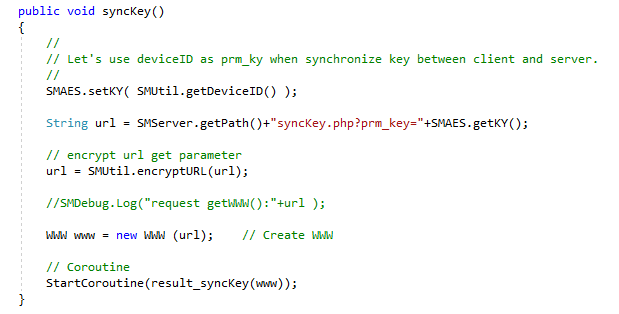
The client function syncKey(), used to negotiate a new key with the server, sets the encryption key to the device ID.
This flaw is perfect for an attacker who is either passively observing the traffic or is performing a man-in-the-middle attack, as they will be able to determine the new key in use between the client and the server, and then use that to decrypt any requests that subsequently occur. Their attack could take the following form:
- Attacker waits for client to begin talking to the server, they record all, or at least the HTTP traffic sent between the client and the server.
- Client application places a request to syncKey.php. In this request, they send the device id and the shared key (encrypted with the device id).
- Server then generates a new key, and sends it back to the client. The new key will be encrypted with the client’s device id as the key.
- Attacker has observed the traffic in steps 2 and 3. Using the device id sent in 2, they can decrypt the message in 3, and determine the new key.
- Attacker can now decrypt any messages sent.
Data Integrity
In TLS, data integrity is ensured using Message Authentication Code (MAC), with a variety of algorithms available for use. Hash functions and MAC functions are often confused, however I found a neat explanation on the differences on Stack Overflow: What is the Difference between a Hash and MAC (Message Authentication code): A Hash function will blindly generate a hash of a message without any input, whilst a MAC uses a private key as a seed to the hash function when generating its output. MAC’s allow us to ensure a receiver that not only has the message not been tampered with, but the sender was in fact who we were expecting it to be.
In SMAES, data integrity is only provided for information sent by the client to the server, there is no integrity (only confidentiality) for data sent from the server back to the client.
The developer has chosen to use the MD5 algorithm for hashing throughout, and whilst MD5 was originally developed for cryptographic hashing it’s security has been severely compromised. Weaknesses in MD5 have been widely exploited, see the Flame Malware; most security professionals will recommend against its use due to these issues. Due to this selection, SMAES in reality only has protection against unintentional corruption.
Verification of Parties
We can verify the parties of a communication in TLS through the use of public key cryptography. Typically, in TLS we opt to authenticate at least one party, and unusually that will be the server. Public key cryptography, or asymmetric cryptography uses a pair of keys, one being a public key, which we often disseminate widely and a private key that is only known to the owner. We can use these keys to provide both authentication and encryption.
SMAES makes use of a symmetric cryptography protocol, AES throughout. Symmetric protocols make use of a single key that is shared between both parties. In the case of SMAES, this is either the shared key we hard code, or the key produced via the synchronization process. Symmetric protocols do not offer any verification of the parties, as the cryptographic key is potentially widely shared. In the case of SMAES, there is no way for a client to validate that it is talking to the server, and not just to another client.
Handling of Keys and Data
There are a number of ways that keys and sensitive data can be mishandled, resulting in exposure and compromise. In my experience, application logging is a significant vector where sensitive data can be exposed. Sensitive data exposure is one of the items in the OWASP Top 10 application vulnerabilities. In this situation, attackers don’t need to break the cryptography, they just need to gain access to the server and read the log files. A successful attack resulting in the compromise of the log files results in a compromise of all of the protected data. The OWASP Logging Cheat Sheet specifically highlights that sensitive information should never be recorded in logs, but should be removed, masked, sanitized, hashed, or encrypted.
Taking a look at the client, we can see that the logging is disabled by default. We can enable it manually by either: setting m_IsDebug=1 in SMDebug.cs; or running a debug build.
During my review, I found that the client code exposes unencrypted data by writing it to the log file. For instance, when encryptURL() is called, prior to returning the result to the calling application, the encrypted and plaintext versions of the URL will be written to the logs.

Client logs plaintext and encrypted text
Taking a look at the key synchronization, we can see in result_synckKey() that the client’s new key will be written to the log file.

Client logs that the shared key has changed
Things don’t improve on the server side, where logging is enabled by default. The shipped default is for logging to be enabled, however you can change this through the $SMCONFIG[‘debug’] variable in SMConfig.php. There is a recommendation to disable the logging in production, yet I would have to wonder how many people would actually heed this advice.
When we look at the decryption functions in the server side, we can see that decrypted values are being stored in the logs (as seen in the image below).

The server logs a plaintext
Things deteriorate when we take at a look at the key synchronization process. The entire key generation process leaks a new client key over and over again, (as you can see in the images,) beginning shortly after the key generation, an entry of ”Info : generate key_val for key_id($key_id) : $key_val\n” being created, then if storing the value in MySQL or PostgreSQL, the entire insert query is logged, “OK : succeeded to update DB : $q\n”; finally, just to be sure, the new key is stored again “Info: new prm_key : $key_val\n”.
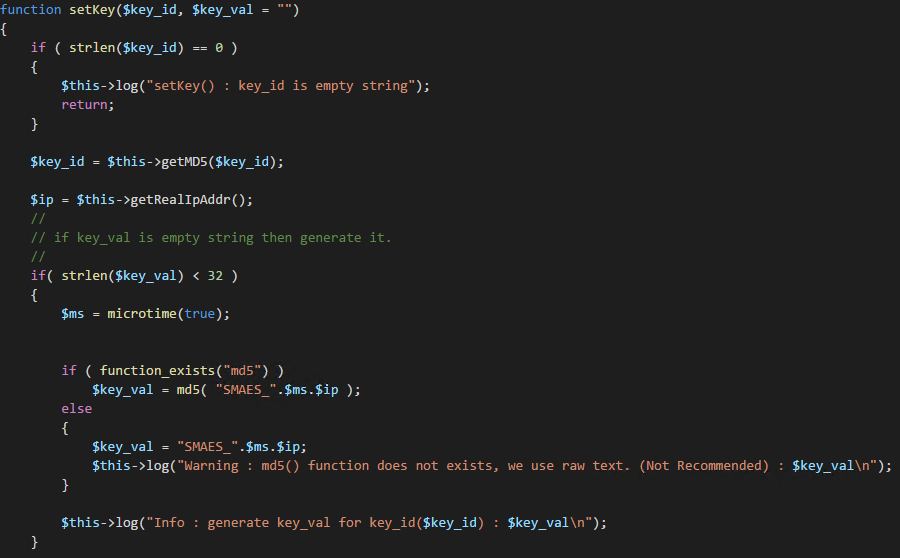
We generated a new key, let’s put it in the log file.
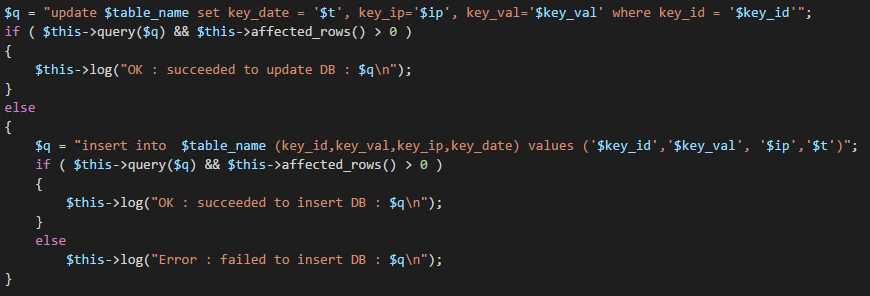
Let’s put the whole insert statement into the log file.

Just so you really do know, we created a new key.
Coding Defects
My first impressions of the code were that it was written by a developer who had a familiarity with good coding practices. Functions, parameters, and variables had descriptive names. Comments were there, I would have appreciated some additional comments in some places.
As I progressed, I started to gain the impression that two developers were actually behind this project; one who started the project, and knew how to design reusable code, and another one, who finished off the project and didn’t have the same level of skills and experience. The client and server side share some similar design patterns, but whereas the client code is very robust and well implemented, the server code isn’t.
“Copy and paste is a design error”
A number of times I saw code, especially in the server code, that was obviously copied and pasted between different sections, instead of opting for a more reusable design. There are a number of areas where the same chunk of code is copy-pasted about, these would have been better as shared code. Instances include the generation of keys, and the logic for determining a client’s IP address.

New client key generation code is cut and pasted between the different key storage methods.
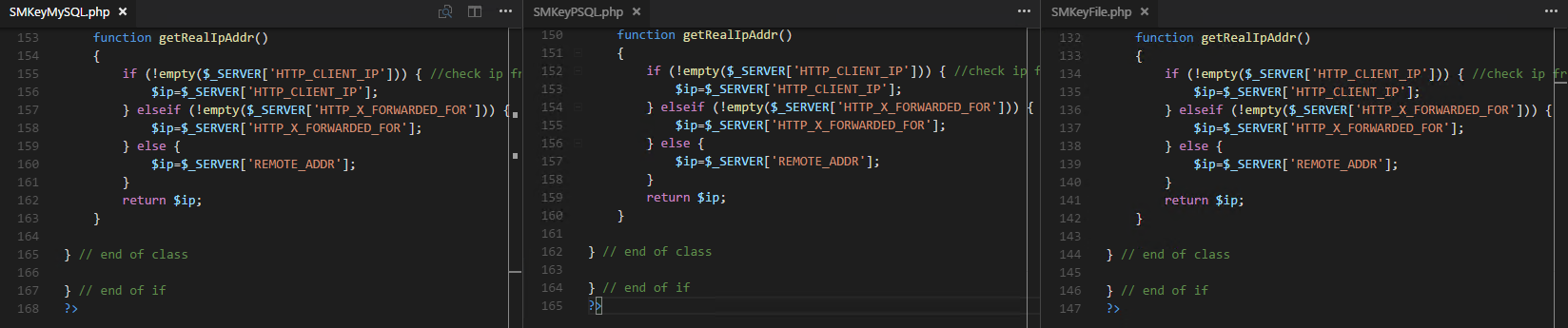
Code to determine the clients IP address is repeated throughout. Here are just 3 examples.
There is an SQL Injection risk within the server code. The code does not use prepared or parameterized statements, all of the queries were performed using dynamically created queries. The time it would have taken to use either PDO or MySQLi is trivial, which leads me to wonder if the developer either doesn’t know of the risks, understand the risks, or assumed that it wasn’t important to protect against them.
I see two potential ways that an attacker could abuse the SQLi vulnerability. If the server doesn’t support MD5 (it is optional server side), they could specify an SQL statement for the device ID when calling syncKey.php. The second method, and easier method, would be to call syncKey.php, and specify an SQL statement for one of the HTTP headers, either HTTP_CLIENT_IP, or HTTP_X_FORWARDED_FOR.
One effective SQL statement would be: say “; DELETE FROM $table_name; --“, as it would result in the table containing the client keys to have all of its entries removed. When the client stops working, most users would typically close and reopen the app, triggering off calls to syncKey() and syncKey.php. If the attacker combined this vulnerability, with the vulnerabilities found earlier in the key synchronization, they could potentially learn the encryption keys for all of the connected clients.

SQL Injection in the function getKey in SMKeyMySQL.php
Data validation is non-existent on both the client and the server. Both sides regularly accept input, without so much as validation on the length or the contents. Validation is a simple control and should be performed at all stages, from checking that a base64 string doesn’t contain invalid characters, to checking that a device ID is an appropriate length and structure (setting aside how Unity doesn’t enforce any sensible values for SystemInfo.deviceUniqueIdentifier).
Backdoors
Throughout my review, I wanted to ensure that there were no deliberate backdoors in the code. I found no instances of data being sent to remote servers. The code is free of backdoors.
Conclusion
Considering everything I have seen, and everything I know about HTTPS and TLS, I cannot recommend that people consider using Secure HTTP without HTTPS, and I would go as far as to say that it is unsafe to use. It does not provide the same level of protection be it confidentially, integrity or authentication as provided by HTTPS and TLS.
There really are no valid reasons to stick with HTTP over HTTPS, especially when developing applications for mobile platforms. We have projects like Let’s Encrypt providing free certificates supported by every major browser manufacturer and CloudFlare providing SSL as part of their free product offering. If you don’t want to use free offerings, there are still plenty of low cost, well trusted Certificate Authorities out there as well.
From a performance perspective, HTTPS is faster than HTTP due to its support for things like HTTP/2. Troy has an excellent post about why HTTPS is faster in: I wanna go fast: HTTPS’ massive speed advantage.
Finally, Google will rank pages that support HTTPS higher than those which don’t. If you care about your company/app/product, then HTTPS is critical from an SEO perspective.
Thanks
I want to thank everyone once again who has been involved in this or that contributed. Big thanks go out to Troy Hunt, Scott Helme, Ar0xA4, Andy Neillans, Mads Høgstedt Danquah, Bruce Blair and the anonymous donor, without you, this would not have happened. I also want to thank fellow Readifarians Steve Leigh for finding Secure HTTP without HTTPS, and Mahdi Hasheminejad for looking through everything with me.
This whole process has left me blown away with how amazing the Information Security community can be, thank you all for such a wonderful gift for the start of 2017.
Update 2017-01-30
Secure HTTP without HTTPS has now been removed from the Unity Store.
How the Skype team failed at PowerShell
The Skype for Business team recently sent out an email to preview customers with guidance around the Skype Meeting Broadcast feature. As I was away, Readify’s CIO, Tatham Oddie was the one who actioned it. The guidance in this email has a number of issues, leading him to post his thoughts up on Twitter, needless to say, he didn't like their advice!
The instructions were pretty simple, as you can see:

A full copy of the email can be found here.
I was shocked when I saw the guidance, from requiring elevation, to changing the execution policy without informing the user, and then a Lync reference to top it all off. I felt that some things needed a discussion.
Unneeded Elevation
The user is asked to run an elevated PowerShell session on two occasions. This is two too many.
For the first instance, the user is asked to run an elevated PowerShell simply to execute Get-Host. GET-HOST! There is no conceivable reason why you would ever need to be elevated to run this CMDLet. I think Get-Host is probably one of the simplest CMDLets in existence, yet the Skype for Business team felt like it needed to be elevated.
“Open PowerShell as an administrator (Right click on icon and click run as administrator) ”
Now the second elevation attempt is almost legitimate. During the step titled “Connect to your Office 365 tenant through remote PowerShell”, we will be executing Set-ExecutionPolicy. Unfortunately, I will discuss later why this command shouldn’t be here, and hence there is no reason for elevation.
“Open PowerShell as an administrator (Right click on icon and click run as administrator) and issue the following cmdlets:”
Any time you elevate, you need to be more aware of what you are doing. In most cases, elevation is only required if you are making changes to the local system. Instructions to configure a cloud based service requiring elevation should be ring big honking alarm bells, maybe even giant ones. Why on Earth would I be making changes locally, when configuring a cloud service?
I don’t run as local administrator; my every day account is not a member of the local administrators group. This has the unfortunate side-effect of breaking much of Windows 10 (thanks Gabe), however it dramatically improves your security posture. Even if UAC was bypassed, my account isn’t a member of the group, it doesn’t have the privileges you seek. When I need to elevate, it’s a conscious decision on my part, do I want this app to do this, do I want to make this change? I very much believe that all users, be they home users, developers, or system administrators, should run in this model. As a side note, its painfully obvious that most of the Microsoft development team runs with local admin.
Changing The Execution Policy
“Set-ExecutionPolicy Unrestricted”
I always get a bit upset when someone or something changes the execution policy and in the guidance, that is exactly what the Skype for Business team want to do. Not only have they decided to make this change for me, but they have picked one of the least secure settings, unrestricted. They haven’t even made an attempt to switch it back and the end of the execution process.
The first thing I want to point out is that the Skype for Business CMDLets will work perfectly on execution policy of AllSigned and RemoteSigned. They are after all signed with a code signing certificate issued to Microsoft. After going through all of the effort to get their modules signed, the Skype team simple went YOLO, let’s set the policy to Unrestricted.
They could have of course gotten the user to run simply that PowerShell session as unrestricted, or they could have recorded what the policy was before they changed it, and switched it back. Like this:
There has also been no attempt at even checking what the execution policy was previously, perhaps all would have been OK? Why not have this as a prerequisite step?
Finally, they have made the assumption that the user receiving this guidance can change the policy. I have worked in a few environments where group policy would step in and prevent setting the execution policy to unrestricted.
What is an Admin with MFA to do?
It would have been great to see a mention of what an admin with MFA enabled, should do to run these commands. Thankfully the Skype for Business team allow the use of App Passwords, unlike their poorly informed and aggravatingly annoying peers in the SharePoint and Exchange online teams who reject app passwords.
Is that a Lync reference?
“$LyncSession = New-CsOnlineSession -Credential $credential”
I know Tatham and I are being pedantic, but a Lync reference, seriously? Microsoft announced that Lync would be replaced by the Skype for Business branding a year ago!
What the email should have looked like
I don’t like tearing things apart without helping to fix them, so how could the Skype team have done things better?
Well here is one that I prepared:
“To get started with Meeting Broadcast please follow these steps:
Setup PowerShell
Open PowerShell
To check your PowerShell version, enter this cmdlet:
Get-Host
You must have version 3 or higher. If you have a lower version, install PowerShell version 4: http://www.microsoft.com/en-us/download/details.aspx?id=40855
To check you have the Skype for Business module installed, enter this command:
Get-Module -ListAvailable -Name SkypeOnlineConnector
If there is no results listed, Install the Skype for Business module: http://www.microsoft.com/en-us/download/details.aspx?id=39366
To check you have the correct execution policy level, enter this command:
Get-ExecutionPolicy
If the output is undefined or restricted, please view our guidance on setting the execution policy to RemoteSigned: http://www.microsoft.com/some-guidance-here
Restart your computer (as it may not be prompted to do so).
Connect to your Office 365 tenant through remote PowerShell
Open PowerShell and issue the following cmdlets:
$Credential = get-credential
$Skype4BusinessSession = New-CsOnlineSession -Credential $credential
Import-PSSession $Skype4BusinessSession
Note: If your account has Multi-Factor Authentication enabled, please ensure you use your username and an app password.
”
As you can see, there are a number of changes.
- There are no elevation requests in the instructions. We check the prerequisites with no elevation, and the connection instructions no longer require elevation either.
- There are now appropriate checks to ensure the Skype for Business Online Connector is installed. This is a simple touch, but makes the process much easier for users.
- Checking what the Execution Policy is, and we link to Microsoft guidance on what the appropriate policy is, and how to change the policy.
- I removed the Lync reference.
- Changed the restart wording. Sometimes when you install the module, it doesn’t correctly prompt for a restart, but it does indeed need a restart.
- Added a note around what to do if MFA is enabled.
None of these changes were very difficult, nor where they very time consuming. I really don’t understand why no one at Microsoft picked up any of these issues prior to the email being sent off. I can’t see any excuses for missing this issues, they were painfully obvious.
Kieran Jacobsen
White-listing Tor in CloudFlare with PowerShell
CloudFlare has been one of those technologies that has dramatically improved the Internet since its arrival. CloudFlare provides a number of amazing features, from DDOS protection, traffic analytics, performance optimizations and even free SSL! To top it all off, CloudFlare off the majority of their features for an amazing price – FREE!
Unfortunately, there are a group of users who have suffered with the rapid adaption of websites being protected by CloudFlare; Tor users. Whilst the majority of us receive the benefits of CloudFlare, it has made life for Tor users extremely miserable.
What is the issue with CloudFlare and Tor?
To understand the issues CloudFlare and Tor, we first need to understand how CloudFlare protects a website. When you visit a protected website, CloudFlare performs a risk assessment of your IP address. If CloudFlare decides that you are friendly, then you get to view the website. If it decides you are suspicious, then you will either be prompted with a CAPTCHA request or, in the extreme cases, it will deny access to the website.
The Tor is an interesting network, developed with the aim to protect privacy and defend against surveillance; the network has become a bit of a hive of scum and villainy. Due to the high use of Tor for malicious activity, CloudFlare is naturally suspicious of any connections coming from a Tor exit node, which results in a high risk assessment for all Tor users accessing protected websites.
A high risk assessment results in lots of CAPTCHA requests for Tor users to complete. Every protected page that a Tor user visits, will result in a CAPTCHA request, whilst most of us don’t mind completing these, consider how you would feel answering one every 15 to 20 minutes. It impacts productivity and your sanity.
What is the solution?
The trust of the matter is that there isn’t a simple solution, there isn’t a magic “trust Tor” button in the CloudFlare. It is down to individual website operators to white-list the Tor exit IP addresses; this isn’t trivial, requiring operators to maintain a white-list as the Tor network changes, adding new exit IP addresses that join the Tor network, whilst removing those that leave.
Now is the best time to point out the risks of white-listing. White-listing isn’t without its own risks! When you white-list an IP address in CloudFlare, you are telling it to ignore how risky the traffic coming from that address might be. Not all Tor users legitimately want to view the content of your website; some Tor users are malicious, they are out for blood. White-listing significantly changes the security protection of your site, and you need to be extremely aware of the risks it introduces.
Set and Forget White-Listing
Donncha O'Cearbhaill developed a Python based script with the aim of providing a “set and forget” mechanism for white-listing Tor exit IPs. Donncha’s Automatic CloudFlare Tor Exit Whitelister takes your CloudFlare API token and email address and does all the hard work. The script will grab the latest listing of the Tor exit IPs, and then updates CloudFlare’s white list as appropriate.
When I saw the script, my immediate reaction was “what an amazing idea”, my next was, “how could this be made more accessible to more website operators?
Turning to PowerShell
The obvious answer to encouraging more web site operators to white-list Tor exit nodes is to provide the process in more accessible formats. For Windows users, the best option is to provide the process as a PowerShell script.
So I sat down, learn some Python, and then worked on developing a PowerShell script with similar functionality as Donncha’s. This was a super fun and interesting process. In the end, I deliberately tried to stick a similar logic flow, similar parameters are supported (via parameter liases), and the scripts default output is similar. I added some additional verbose and debug options and added progress bars for long operations. I haven’t included support for specifying the CloudFlare API token and email address via environment variables.
The final result can be found over at GitHub, at https://github.com/poshsecurity/PowerShell-CloudFlare-Tor-Whitelist. All of the functionality is provided by the Set-CloudFlareWhiteList.ps1 script.
Please feel free to raise pull requests, issues, or provide any feedback that you may have.
Usage
I have included comment based help, with examples on how to make use of the script. There are three common usage methods.
- Specifying a CloudFlare token and email. This will white-list exit node IP addresses across all of the domains in your CloudFlare account
- Specifying a CloudFlare token, email and a DNS zone. This will white-list exit node IP addresses for a specific DNS zone.
- Specify a Token, email and optionally a DNS zone, and the -ClearFlags parameter. Remove all Tor specific rules for all domains in your CloudFlare account, or for a specific DNS Zone.
Finishing Up
I want to thank Donncha for his work in developing the original Python script. Without his work, I wouldn’t have been able to develop mine.
If you want to find out more about CloudFlare, Troy Hunt has put together a terrific PluralSight course, Getting Started with CloudFlare™ Security. He covers the basics including migration, SSL configuration and even HSTS.
Kieran Jacobsen
Why Remoting vs SSH vs RDP Shouldn’t Be A Thing
Microsoft recently announced that they would be introducing SSH support in the coming Windows Server release. It has taken three attempts by the teams within Microsoft to gain the necessary approval to do this, and finally, third time is the charm. Hats off to those within Microsoft who have had the courage to keep to their guns with this one and get SSH included. You truly have made a positive improvement.
The introduction of SSH opens up a world of possibilities for administrators, developers and integrators; unfortunately, there seems to be quite a few in the industry that don’t share in the excitement.
I think some people misunderstood why people were so excited. Some went so far as accusing a few of us of shouting “Death to Remoting”. I don’t see this as the death of Remoting, it is naïve to think that SSH will replace Remoting; SSH will compliment Remoting and solve a number of challenges which currently exist with Remoting.
Native support for SSH both as a client and as a server opens up a number of functions and tasks which until recently were only achievable via third party utilities, modules and just plain hacky code. Carlos Perez and I have both written PowerShell modules (his is better), that integrate with SSH, Posh-SSH and SSHFunctions respectively. We wrote these to bridge a number of gaps, gaps that will/should be removed with native SSH support.
This is a new world for administrators and developers alike, be that those who work primarily in the Microsoft space, as well as those working with Linux.
Remoting –ne SSH –ne RDP
It should be painfully clear, but I want to make it absolutely crystal clear; Remoting does not equal SSH, SSH does not equal RDP and RDP does not equal Remoting.
Each of these protocols have a different aim:
- Remoting (or WinRM) is roughly a remote management protocol
- SSH provides a Secure Shell for text based management
- RDP provides remote GUI access for GUI management
We really shouldn’t get these confused, each of them have different goals and aims, and as administrators/developers you need to know each one, when each one is appropriate to use and when each one is inappropriate.
Remoting
Remoting is an implementation of the WS-Management, which is an open, SOAP based protocol for the management of things like servers, workstations, devices and applications. The WS-Management standard was developed by a bunch of smart people at AMD, DELL, Intel, Microsoft and Sun back in 2005.
Unfortunately, WS-Management didn’t really take off, with only 4 major implementations found on Wikipedia: Windows Remote Management (WinRM), an implementation in SUSE Linux Enterprise, a European research project and finally Intel’s Active Management Technology. It is easy to speculate why WS-Management didn’t take off, the most obvious is the heavy overheads of SOAP web services. SOAP was big back in the 2000s, it isn’t as popular now and with good reason.
Believe it or not, I like WS-Management and Remoting. Remoting supports two pieces of software to connect to each other, and efficiently exchange complex pieces of data, allowing administrators, developers and integrators to build rich pieces of software on top.
Multifactor authentication is pretty limited with Remoting. While you can add two factor into RDP, remoting hasn’t had the same treatment.
Server authentication in Remoting is typically a complex story. To start with, typical deployments will be based upon HTTP providing limited (read: no) authentication, if you want strong server authentication, then you need to switch to HTTPS.
The switch to HTTPS for Remoting is where things start to fall apart. A typical Remoting HTTPS deployment will be based upon self-signed or internal PKI. If you stick with self-signed, you either need to manually trust each server’s certificate, or you can skip the CA trust checks. If you want proper certificates, typically you are going need to deploy a CA infrastructure, and then configure each server to use HTTPS; you can’t use Group Policy, it doesn’t support enabling HTTPS for Remoting. Finally, don’t turn off HTTP if you want to keep using the Windows Server Manager. If you want to understand how bad configuring HTTPS for Remoting is, check out the best guide available at Carlos’ Blog, WinRM SSL Certificate Deployment via GPO.
Remoting has unfortunately been missed when it goes for secure configuration guides, the same goes for things like IDS and IPS rules. Whilst there are obvious challenges for IDS/IPS scanning of Remoting traffic that is over HTTPS, thankfully we can apply a lot of the same policies and rules for IIS to Remoting.
I feel a little jaded by Microsoft’s release of a reference implementation of WS-Management for Linux. It should be obvious to Microsoft by now that big companies cannot force the open source community to implement the standards and solutions they want. I was kind of shocked to hear about this one.
Side note: How long till Remoting is RESTful?
SSH
SSH, or Secure Shell, is an encrypted protocol for the initiation of text-based shell sessions on remote machines and was originally developed to replace Telnet, RSH and REXEC. If you ask the average person what SSH is for, they will tell you it is what you manage Linux and Unix with.
Whilst it is possible to use SSH as an integration point into automation and management of remote endpoints, it doesn’t support the exchange of complex object types, it only supports strings. For those who haven’t tried using SSH for large amounts of remote command execution, the closest would be something like invoke-command. Don Jones explained it well, “It’s all text, all the way down to the turtles.” As he goes on to summarise, whilst text isn’t bad for automation, string manipulation isn’t good. I also feel that it is wise to point out that string manipulation is a great way to introduce security vulnerabilities as well.
SSH makes up for all of this, by being extremely secure. SSH supports multifactor authentication with support for both password and key authentication, something that Windows still hasn’t caught up to (natively).
Server authentication, that is, the authentication of the server by the client (so we know we are connecting to the right server and we are not being MITM), is quite easy. Servers have a public and private key pair, we just need to verify the thumbprint of the public key, and then we can establish a trust relationship (from here to eternity if we so desire).
Another advantage of SSH is we know extremely well what valid SSH traffic looks like. This is critical in protecting connections either leaving our networks perimeter or those entering from outside. If devices like our IPS and IDS systems know what a valid SSH packet looks like, then we can make an attempt to weed out the nefarious traffic.
Transferring files over SSH is extremely easy, fast and efficient. I have used SSH as a file transfer mechanism in a number of environments, be it at home, in financial institutions or even for backups and server migrations. In banking SSH is an industry standard, much like PGP/GPG for a reason.
In summary, SSH gives us a secure text session in a manner that is extremely easy and without a PKI, unfortunately it is pretty bad at the exchange of complex data.
Side note: Check out Mosh an SSH replacement (not available on Windows yet). I really like the idea’s behind Mosh and can’t wait to see where it goes. I would really love to see a synchronised state console like this one.
RDP
We should all by now, know what RDP is! RDP allows us to connect to remote devices and servers via a graphical session. RDP does remote graphical consoles really well, has a simple but quite reliable security model and supports some limited file transfer options.
RDP is a heavy protocol on a network connection and for obvious reasons. Even with the advances in later RDP protocol versions, sending a graphical interface over the Internet can still be slow and laggy; combine this with file transfers, and you are in for a long wait.
There are a number of ways to add multifactor authentication to RDP, most notably solutions from DuoSec.
Server authentication in RDP is actually pretty good. RDP comes by default with a self-signed certificate which does provide a degree of server authentication. You can step it up a notch by moving up to certificates issued from an enterprise CA. Configuration of RDP to use an enterprise CA is extremely simple, you can use group policy all the way. For a great write up on how to set it up, check out Carlos’ post, RDP TLS Certificate Deployment Using GPO.
RDP has been around for a long while, and a significant number of IDS and IPS products have developed rules to detect malicious traffic. Much like SSH, there are plenty of secure configuration guides for RDP from a number of trusted sources.
We need to reduce our reliance on RDP, not just because of how slow it is when managing cloud based infrastructure but also because it doesn’t support automation to any extent. RDP will always exist, there are times when we will need to run a GUI on a remote machine.
Enter-PSSession
Enter-PSSession deserves a special mention. Providing functionality much like SSH, Enter-PSSEssion allows users to initiate a text based shell session with a remote device all over Remoting. Yes, in many ways it does provide a similar functionality to SSH, but from personal experience it can be a bit slow and clunky.
Why is Enter-PSSession a bit slow and clunky? Well the best way to understand why, is once again by Don <link>. With Enter-PSSession, keystrokes are not transmitted in real-time, instead, each whole line is transmitted, executed, and then the results sent back to us. With all of the SOAP overheads, you can start to see where things get bogged down.
The right tool for the right job
Different tasks require different tools. You don’t use a sledge hammer to drive a screw, you need a screwdriver.
If you are running a graphical interface directly on a server (for an application that doesn’t support running remotely), then you need RDP. If you have to run the GUI on the box, you don’t have any other option but to run the GUI on the box via an RDP session. Obviously, in this case, Remoting, SSH and Enter-PSSession aren’t going to be much help here.
Want to configure a server, well, then PowerShell with Remoting is probably your best tool. You could use a text based console session with SSH or Enter-PSSession, but that might be a bit too much. If you were working with say configuration files, maybe jumping to a full text session might be worthwhile.
The final situation is a complex but common one. You have a single server, maybe its hosted by a provider like Azure; your client doesn’t have any reason to trust that server, there isn’t a shared PKI to support server authentication. SSH in this situation will shine, chances are it will be easier and more secure. Either you are going to switch down to HTTP, trust a self-signed certificate or tell PowerShell to ignore CA validation errors. This is a great time for SSH to shine.
Side Note: It would be nice to see a PowerShell CMDLet to help verify Remoting certificates and even configure trust.
In each of these situations, a different remote management protocol was required. Where as in the past, we had to make do with three options (PowerShell with Remoting, Enter-PSSession, RDP) we have now gained a fourth (SSH).
A Whole New World…
I want to point to a post by Mattias Geniar, How SSH In Windows Server Completely Changes The Game. Mattias has put together an exceptional post on why SSH is a game changer in his mind.
I feel that the introduction of SSH opens up more administration possibilities, there is an SSH client for Android, from that I could be managing my servers in minutes something that I can’t easily do that right now (well there is the PowerShell web page thing).
The introduction of SSH also opens up opportunities for Windows in environments that are currently predominately OSX/Linux/Unix, which has to help in the adoption of products like Nano (but alas Nano will miss out this time round) and the IOT versions of Windows.
Remoting isn’t going to go away just because SSH support has been introduced. I wasn’t rejoicing the death of Remoting when SSH support was announced, I was rejoicing that progress is being made in cleaning up the whole landscape, starting with compatibility and trust. I have always seen Remoting as a successful failure, we have proved the idea works, now it is time to start working on something that is better. I really hope to see a more improved remote management protocol coming out from Microsoft over the coming years, something that is actually cross platform and easy to integrate. Until then, we have three exceptional management protocols in tool kit to use.
Kieran Jacobsen
Why isn't Remoting Disabled by Default on Windows Server?
I was recently involved in a brief and quite lively Twitter discussion with Don Jones and Jeffery Snover about PowerShell Remoting and why it is enabled by default. I have been involved in a number of discussions about this topic, but never with such a distinguished crowd such as this one. My opinion, and my original comments, where along of the line of “I believe Remoting should be off by default”, “Well, RDP is disabled by default, why not Remoting”, and “SSH has been off by default for years”, whilst the counter arguments were of the form “Because Nano Server” or “You could always customise your environment to be off by default”.
Don Jones posted a follow up to this discussion on PowerShell.org titled “Why is Remoting Enabled by Default on Windows Server?” and asked me to put together a post on why I felt it should be off by default. This was difficult for me to put together, so here goes!
It has long been an industry practice, to disable/stop services which are not in use on your clients and servers. The argument is quite simple, enabled services are vulnerable servers, they expose your devices to potential risks. Simply having Remoting off, unless explicitly required, will reduce the attack surface area and increase the security of our systems.
Even Microsoft has followed an off by default methodology for the past 10 to 15 years. Services like POP3 and IMAP are off by default in Exchange, SQL servers do not listen for IP addresses by default, we need to install roles and features individually. Microsoft learnt from a number of major security blunders in the early days (Code Red, Slammer and even Blaster), and focused on a more secure development and deployment model. Why should there be an exception to this posture that has worked extremely well since Windows 2003?
Linux administrators, and developers of Linux distributions have been in a similar situation in the past. For a significantly long period of time, SSHD has been off by default, and administrators have still be able to manage their server fleets. One of the early reasons for an off by default approach in Linux, was that it ensured that administrators were aware of the risks prior to enabling SSHD. Now it can be argued, that this has been a failure, and I think most would agree. I do, however, believe that the failure is not in the off by default configuration, but is in the lack of documentation covering the secure configuration of SSHD. People in glass houses shouldn’t throw stones, as Remoting can be just as poorly deployed.
Remote Desktop is a great example where Microsoft followed these methodologies. RDP is off for a number of reasons with security being only one of them. Ironically, one of the obvious reasons to have RDP off by default is to encourage the move from on server management to remote management. Whilst adoption has not been as high as was expected (due to issues with third party vendors, administrators and to a big extent Microsoft), it is clearly a sign of how ahead of the curve Microsoft has been.
It has become increasingly dangerous to expose management services, be they SSH or RDP on the Internet. If you have ever been responsible to auditing the log files of a server where SSH or RDP is exposed to the Internet, you will be well aware of the automated scan attempts that are performed. Brian Kreb’s has posted on Internet criminals selling access to Linux and Windows servers whose credentials they have brute forced. What happens when the criminals discover Remoting? Bruteforcing credentials via Remoting should be even easier and have written about just such a thing on previous occasions. Should we be enabling these criminals and providing them with even more machines that they can take over?
Well, we are doing this to an extent right now. Users, administrators and developers have all been busy provisioning virtual machines on platforms like Azure and AWS, and whilst in many cases RDP endpoints are on random high ports, the same cannot be said for Remoting. Those who deployed and manage these systems may be well unaware of the risks that they have introduced to their networks. Moving to an off by default model could protect these environments from this sort of configuration error.
As a side note, it is still interesting to me how Microsoft changed Remoting from off to on by default in Windows Server 2012, with very little fanfare. In 2014 when I presented on Lateral Movement with PowerShell, audiences typically responded with a significant amount of surprise, be they from an administration or security background.
In Don’s post, he talks about the fact we could easily create an off by default environment if we so wanted. I really have to disagree with him, and say that he has missed the point to a degree. Whilst it is true, that we could use a customised gold/master image, Group Policy or some other tool to create an environment where Remoting is off by default, it must be highlighted that the inverse, an on by default environment would be just as simple to create with these tools. If you want it on, then turn it on, it isn’t that hard.
Don also talks about the fact that Remoting is an incredibly controllable, HTTP-based protocol. This introduces the other issue I have with Remoting. Unless you are deploying an Azure Virtual Machine, post install, you will be exposing Remoting over HTTP and not HTTPS. Is this 2015 or 2001? Do we really still need to talk about the virtues of HTTPS? It would be trivial for Microsoft to change the default from HTTP to HTTPS in a manner similar to RDP.
Now let’s talk about the big elephant in the room, or should I say Nano elephant in the room? What about Nano Server?!?!? Nano Server, whilst it is a new concept for some of us, isn’t a completely new in our industry. Whilst I agree, it is probably easier to have Remoting (and WMI) enabled by default, it isn’t like the deployment of a Nano Server is currently a simple process. Currently Nano Server is coming as a standalone WIM image, we need to manually add packages providing roles, and we currently need to join a domain during installation. How hard would it be to have a step enabling Remoting? It is trivial.
Having said all of that, perhaps the best middle ground would be to have Remoting enabled on Nano Server, and off for Core and Full installs? Administrators have more option on the latter two than the former. Perhaps a compromise is in order?
Another side note, why doesn’t Microsoft want to enable Remoting on Clients? If Remoting is safe for Internet exposed servers, shouldn’t it be ok for Windows Clients?
So in summary, why should Remoting be off by default?
- Off by default is an industry standard practice.
- Off by default has been Microsoft practice for over 10 years.
- Linux administrators deal with SSHD off, so can we!
- RDP has been off by default, we lived with that.
- RDP and SSH are actively brute forced, why open up another attack vector?
- Off by default reduces administrative misconfiguration/insecure configuration
- It is just as easy to switch it on, as it is to switch it off.
- Nano Server isn’t as much of a challenge as we thing, but it could be the exception.
As Don said, whether you agree or not, it is entirely up to you and you are welcome to add your polite, professional comments to this post, or over at the PowerShell.org forums where I have cross-posted. Like Don, I wanted to explain and attempt to justify why I think Microsoft’s approach is not correct. I often believe the discussion is more important than the outcome, and I believe this is definitely the case here.
Kieran Jacobsen